動画:【計測】 -Video:Cephalometric Analysis [Measurement]-計測画面 -Measurement screen- ①セファロ画像とナビゲーション -Cephalometric Imaging and Navigation-
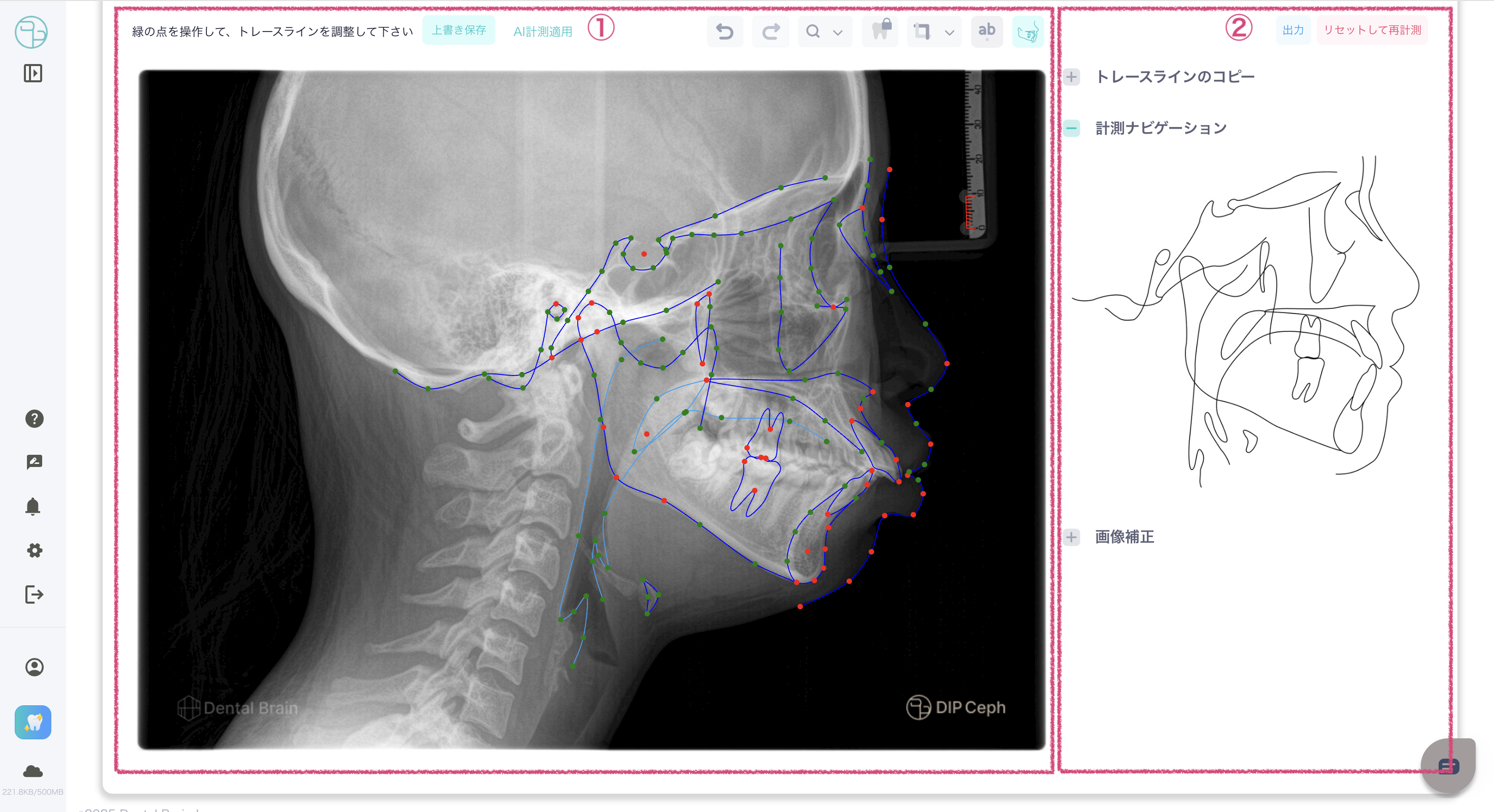
- 画面の左側には、セファロ画像が表示されており、測定を行う主要な領域です。
- セファロ画像上部には、計測の手順を案内するナビゲーションと、ズームボタンがあります。
- -The left side of the screen displays the cephalometric image and is the main area where you perform measurements.
- -Above the cephalometric image are navigation buttons that guide you through the measurement process and the zoom buttons.
②コントロールメニューと操作ボタン画面の右側には、コントロールメニューが表示されており、下記の機能の操作を行います。
-The control menu is displayed on the right side of the screen and allows you to operate the following functions:
- トレースラインのコピー -Copy trace line-
- 計測ナビゲーション -Measurement navigation-
- 画像補正 -Image correction-
計測手順 -Measurement procedure-1. 画像キャリブレーション -Image Calibration-
画像に認識可能な計測距離がある場合には、【AI Dynamic Calibration】を使用でき、簡単に計測ができます。
以前に計測データを保存している場合は、タブから保存している計測距離を選択・使用できます。
上記のいずれも使用できない場合には、キャリブレーション設定より新たな計測距離を設定します。
計測距離は、【3cm】を推奨します。
計測距離の設定が完了したら、[
次へ]をクリックして確定します。
- If the image contains a recognizable measurement distance, you can use [AI Dynamic Calibration] to easily measure it.
- If you have previously saved measurement data, you can select and use the saved measurement distance from the tab..
- If neither of the above options are available, set a new measurement distance in the calibration settings.
- We recommend a measurement distance of [3cm].
- Once you've completed measuring the distance, click [Next] to confirm.
2. 計測方法の選択 -Select measurement method-
2種類の計測方法から選択します:DIP Magic Trace[AI計測]と手動計測
-Choose from two types of measurement methods: DIP Magic Trace [AI measurement] and manual measurement
DIP Magic Trace[AI計測] -DIP Magic Trace[AI Measurement]-
DIP Magic Trace [AI計測]を選ぶと、トレースライン調整(ステップ5)に進みます。
-If you select AI Measurement, you will proceed to Trace Line Adjustment (Step 5).
手動計測 -Manual Measurement-
手動で計測を行います。
-Perform the measurement manually.
3. 【手動計測のみ】S-N点の選択 -[Manual Measurement only] Select S-N points-
セファログラム画像上でS(Sella)点をクリックします。
次に、N(Nasion)点をクリックします。
-Click the S (Sella) point on the cephalogram image.
-Then, click the N (Nasion) point.
4. 【手動計測のみ】標準点の調整 -[Manual Measurement only] Adjusting standard points-
- S-N点を選択した後、セファロ画像上に標準点が表示されます。
- 各標準点を適切な位置にドラッグして調整し、
次へをクリックします。 - -After selecting the S-N points, the standard points will be displayed on the cephalometric image.
- -Drag each standard point to the appropriate position to adjust it, then click Next.
5. トレースラインの調整と計測の保存 -Adjusting the trace line and saving measurements-
- 標準点の調整が完了すると、全体のトレースラインが表示されます。
- トレースライン上の追加の補助ポイントを調整し、
完了をクリックして計測データを保存します。 - -Once you have finished adjusting the standard points, the entire trace line will be displayed.
- -Adjust any additional auxiliary points on the trace line and click Done to save the measurement data.
補佐機能 -Assistant Function-
フレームでの調整 -Adjustment in the frame-
- 赤枠のフレーム枠の近くに表示される緑のアイコン使用して、全体トレースラインの拡大、移動、回転を行うことができます。
- -You can zoom, move and rotate the entire trace line using the green icons that appear near the red frame border.
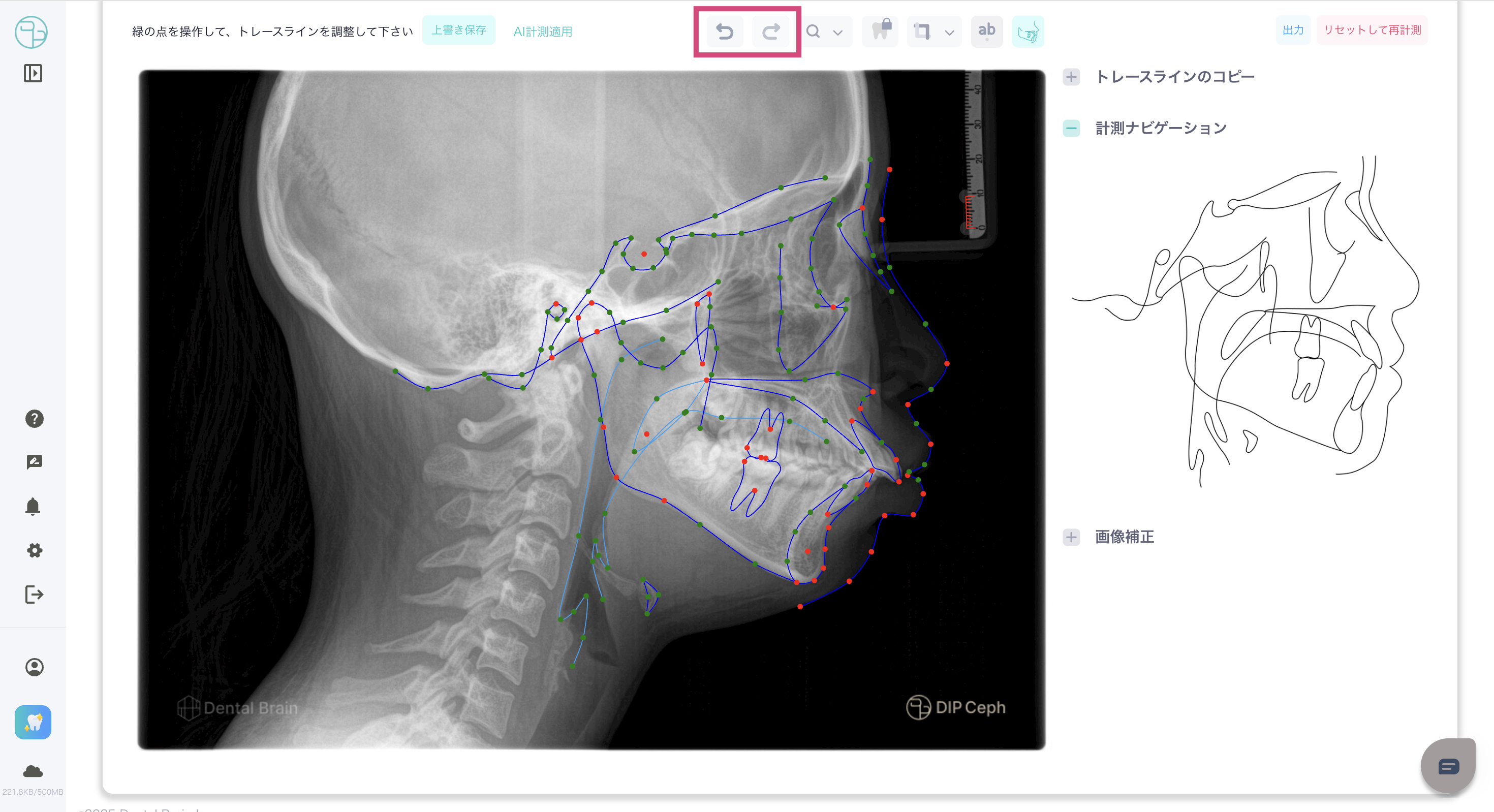
アクションの取り消し -Undo an action-- セファロ画像の右上にある矢印アイコンをクリックし一つ前の状態に戻すことができます。
- -You can revert to the previous state by clicking the arrow icon in the upper right corner of the cephalometric image.
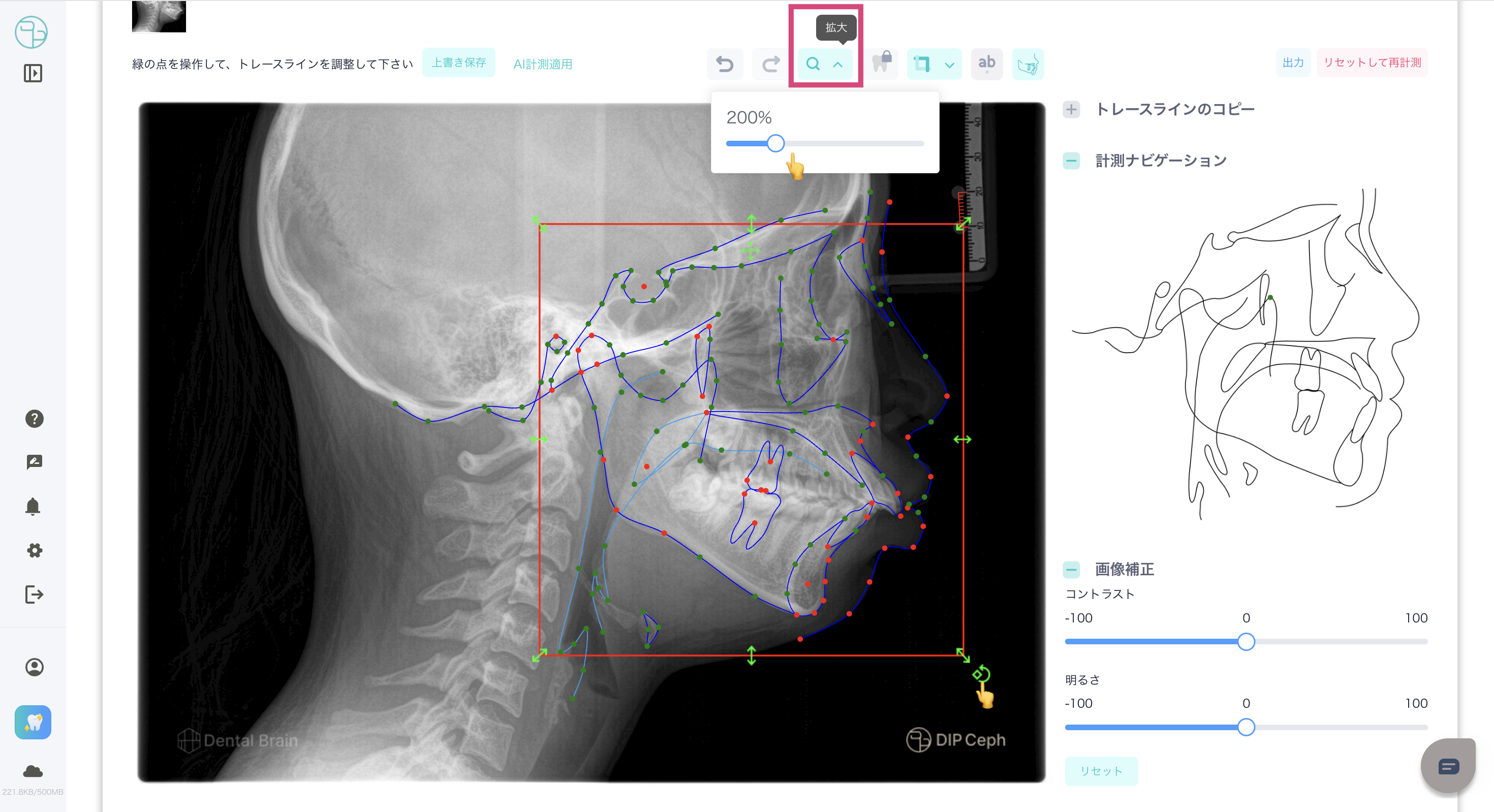
画像拡大 -Enlarge image-- セファロ画像の右上にある【?】拡大鏡アイコンをクリックし、拡大表示が有効にします。(ボタンが緑に変更します)
- 拡大表示がオンの状態で、拡大表示がカーソルを追従して動きます。
- 拡大鏡アイコンの隣にある矢印をクリックして、表示されるバーをドラッグすることで拡大率を調整することができます。
- - Click 【?】the magnifier icon in the top right corner of the cephalometric image to enable magnification. (The button will turn green.)
- - When magnification is on, it will follow your cursor.
- - You can adjust the magnification by clicking the arrow next to the magnifier icon and dragging the bar that appears.
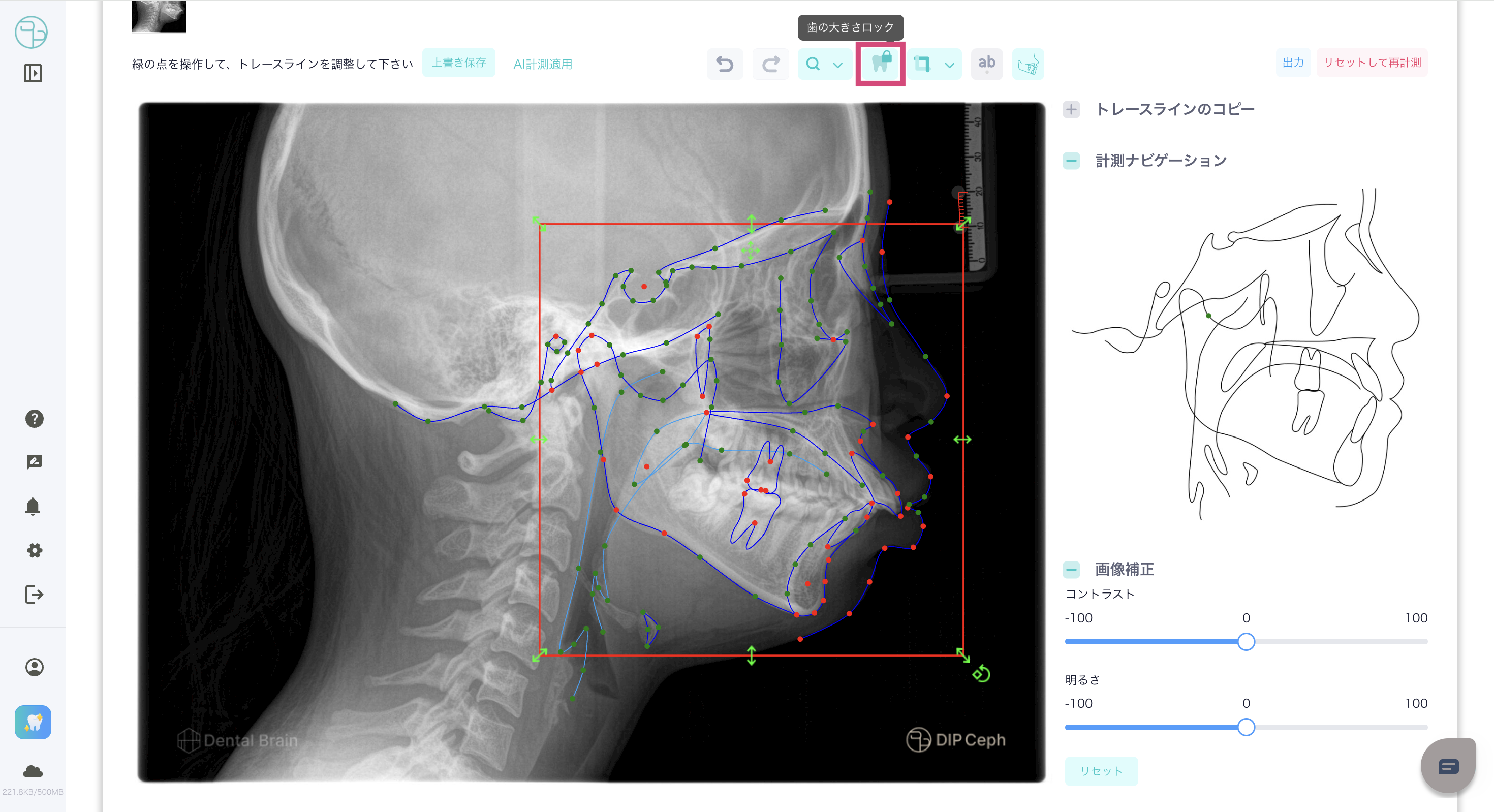
歯のロック -Teeth lock-- セファロ画像の右上にある歯のアイコンをクリックし、フレームを調整する際に歯の大きさをロックすることができます。
- -Click on the tooth icon in the top right corner of the cephalometric image to lock the tooth size when adjusting the frame.
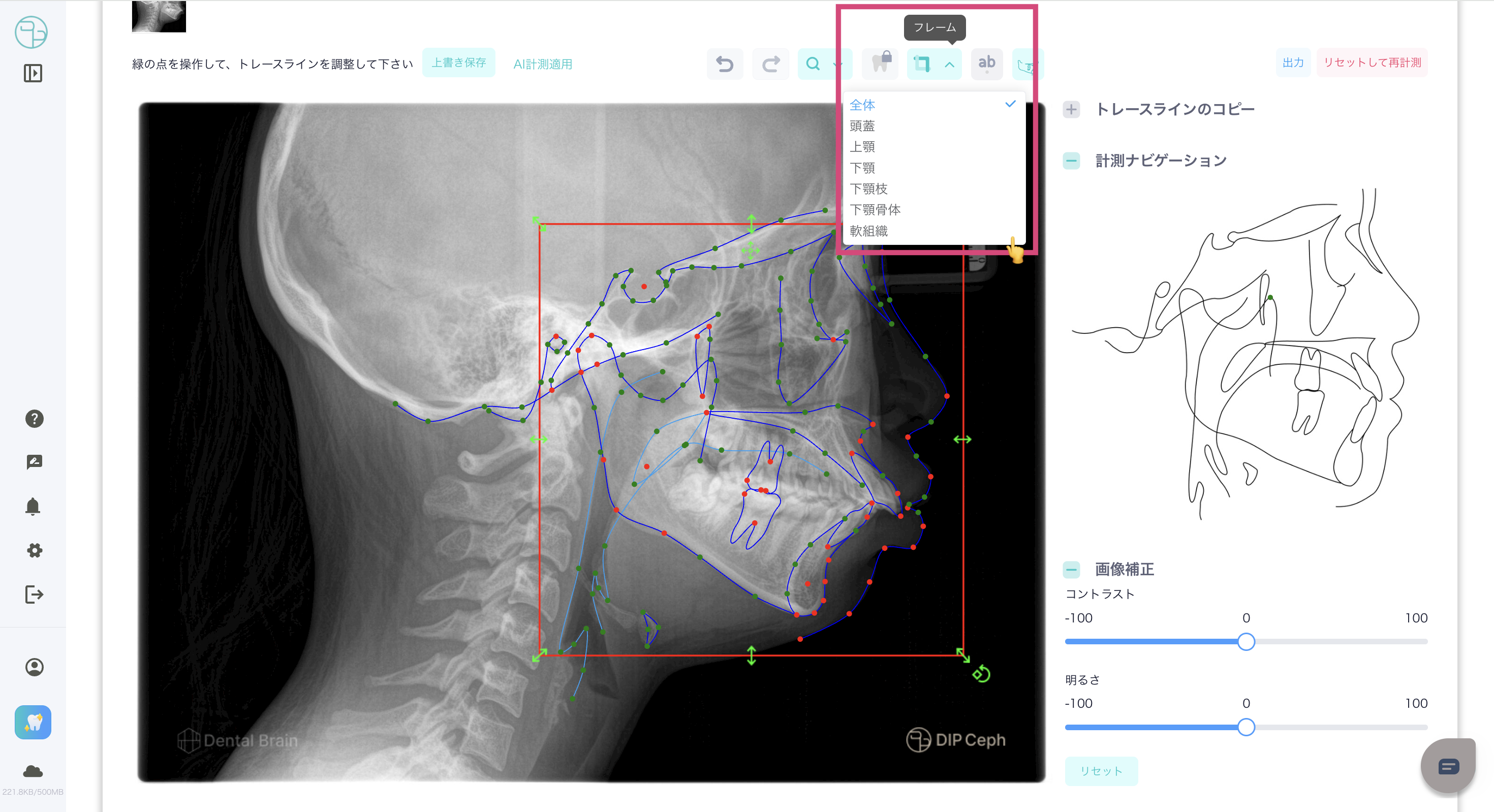
フレームの選択・表示 -Frame selection and display-- セファログラム画像の右上にあるフレームでフレームの選択・表示を設定できます。
- -You can select and display frames using the frame in the upper right corner of the cephalogram image.
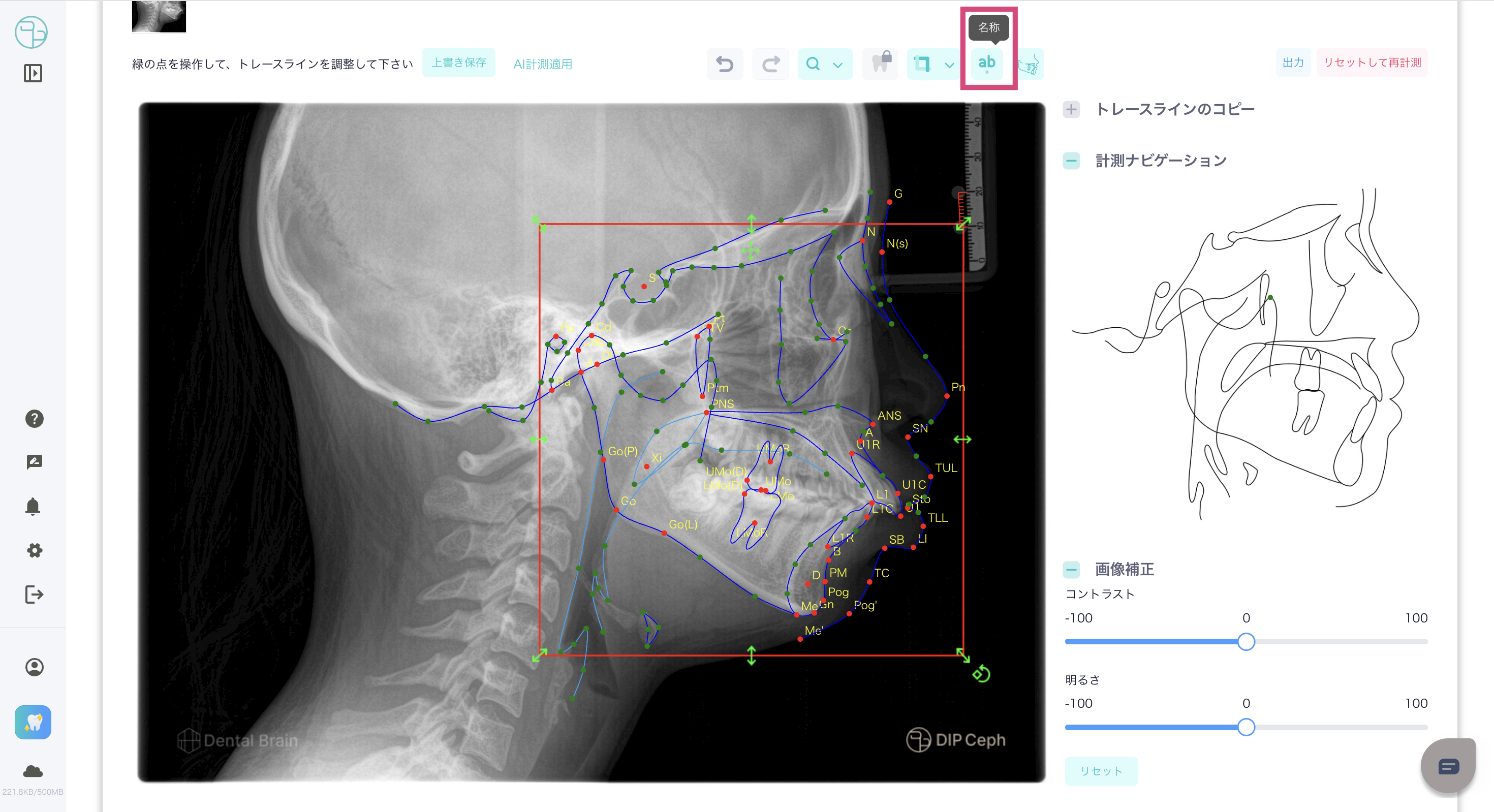
名称の表示 -Display of name-- セファログラム画像の右上にある【ab】アイコンで名称の表示を設定できます。
- -You can set the name display using the 【ab】 icon in the upper right corner of the cephalogram image.
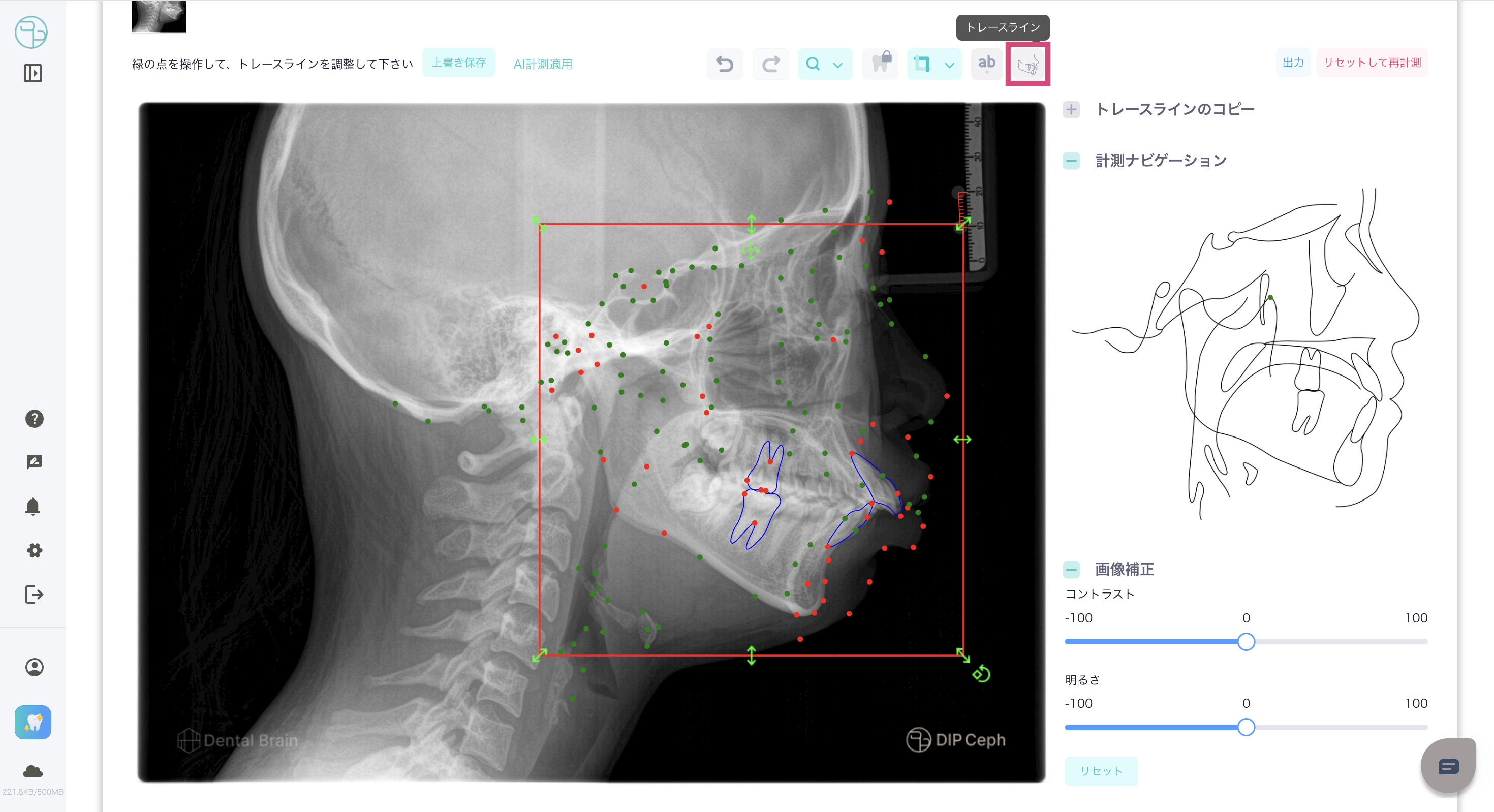
トレースライン -Trace Line-- セファログラム画像の右上にあるトレースラインのアイコンでトレースラインの表示・非表示を設定できます。
- -You can show or hide the trace line using the trace line icon in the upper right corner of the cephalogram image.
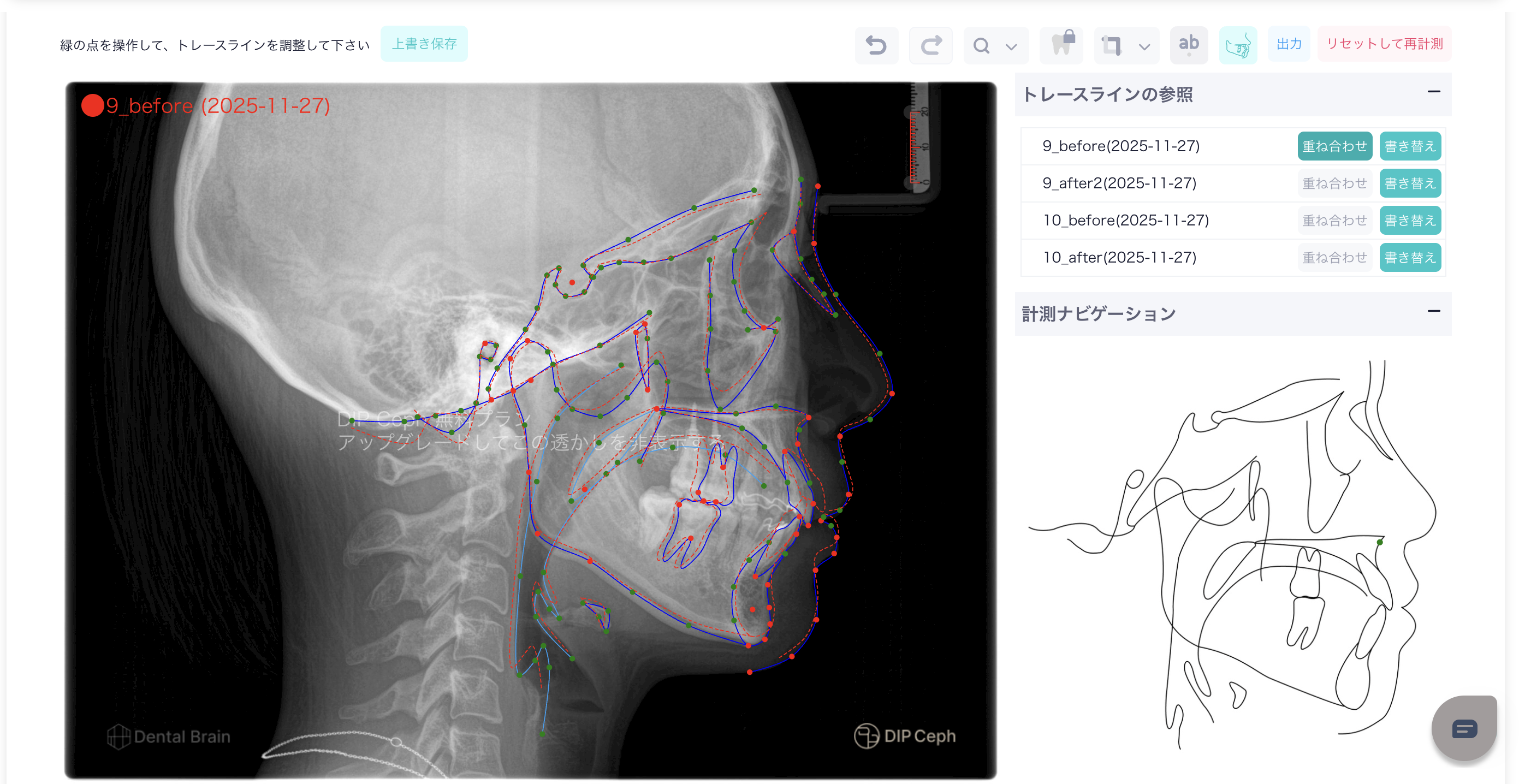
トレースラインの参照 -Trace Line Reference-
- 同一患者の以前に行った計測レコードがある場合、そのトレースラインを重ね合わせで参照することや、トレースラインの書き換えが可能です。
- -If there are previous measurement records for the same patient, you can overlay the trace lines for reference or rewrite the trace lines.
計測ナビゲーション -Measurement Navigation-
- カーソルをセファロ上の基準点に合わせると、その点の正確的位置が計測ナビゲーションに表示されます。
- When you place the cursor over a reference point on the cephalogram, the exact position of that point is displayed in the measurement navigation.
画像補正 -Image Correction-
- バーをドラッグして、セファロ画像のコントラストと明るさを調整できます。
- -You can drag the bars to adjust the contrast and brightness of the cephalogram image.
この記事は役に立ちましたか?
それは素晴らしい!
フィードバックありがとうございます
お役に立てず申し訳ございません!
フィードバックありがとうございます
フィードバックを送信しました
記事の改善におけるご協力ありがとうございます。